Schedule a Demo
Free demos are available for all CM Fusion accounts!
Schedule a DemoFree demos are available for all CM Fusion accounts!
You can now add custom specialty codes in your Account Settings area. These codes allow for custom divisions and specifications.
You can now add custom specialty codes in your Account Settings area. These codes allow for custom divisions and specifications.
These specialty codes can be used for:
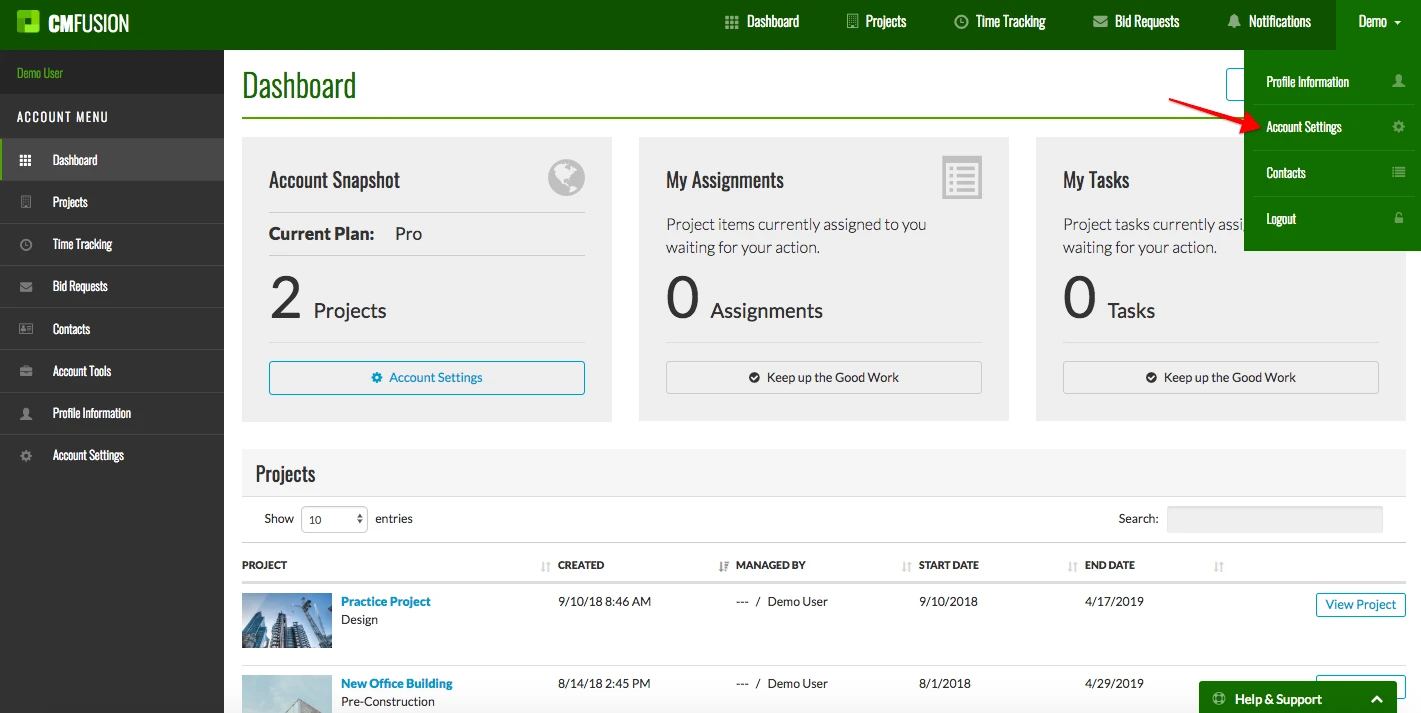
1. Go to your Account Settings page in the drop down list under your name in the top right corner.
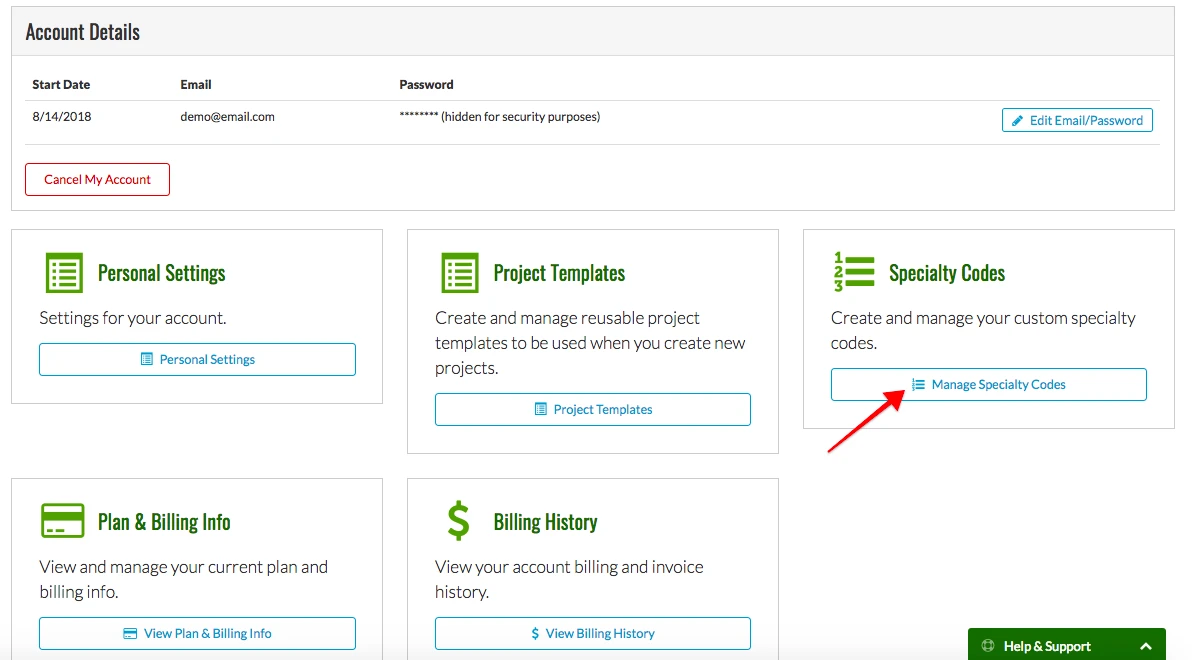
2. Click on Manage Specialty Codes
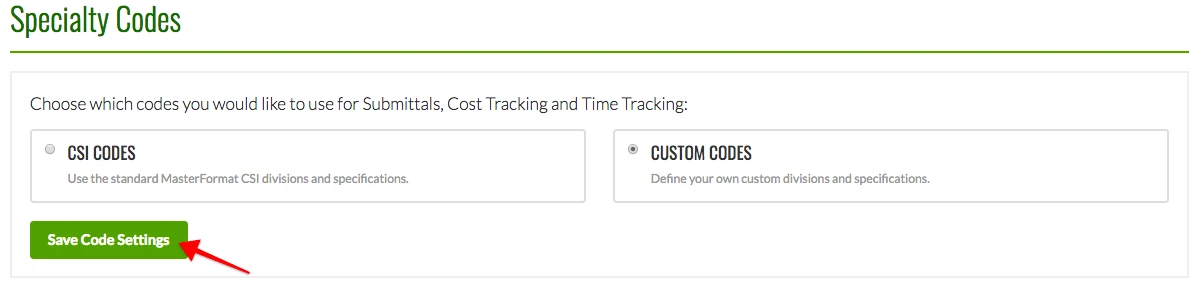
3. Select Custom Codes
4. Create Custom Codes
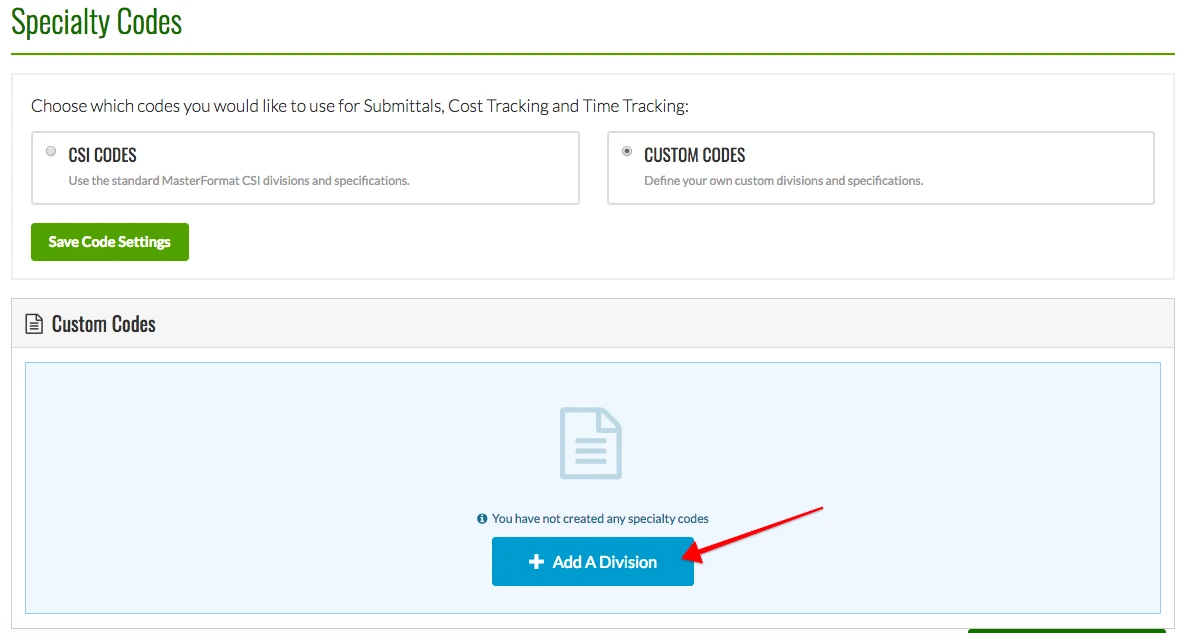
Now you can add new custom divisions. Start by clicking Add a Division.
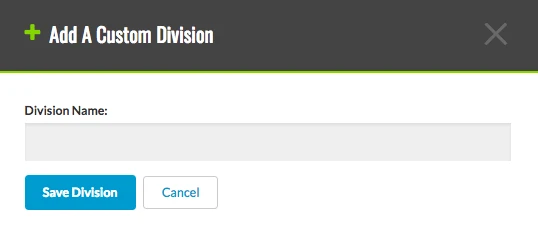
Enter the division name and click Save Division when you are finished.
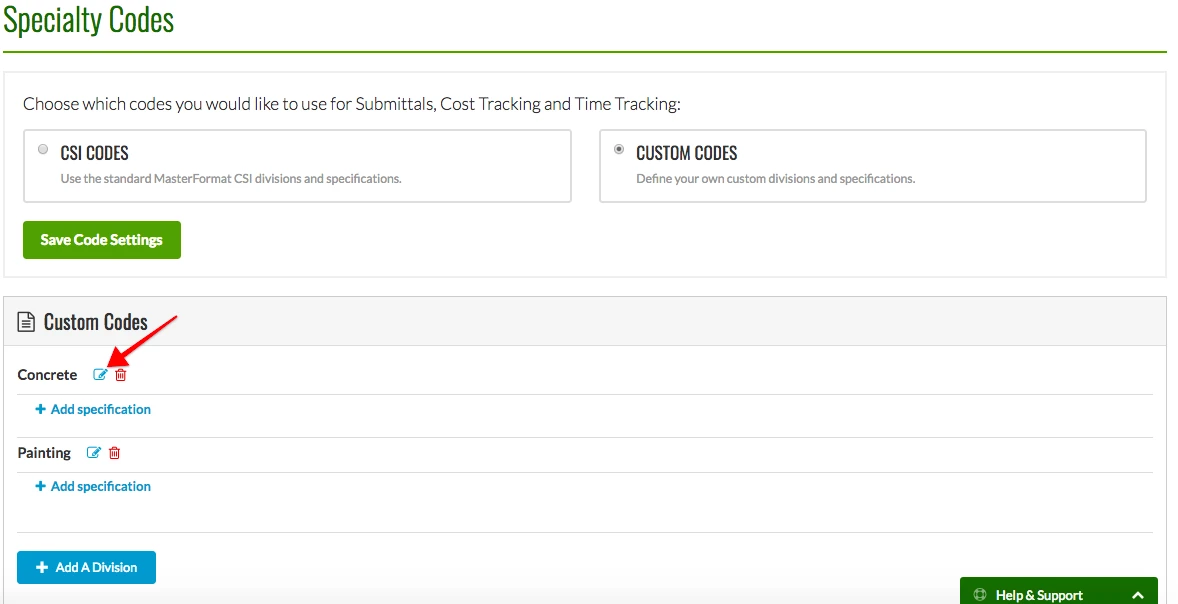
Your new custom codes will display below as you create them.
5. Edit Divisions
To edit a division, click the Pencil Icon next to the division.
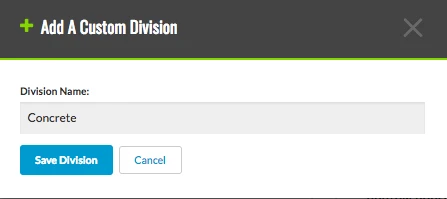
From here, you can change the name and hit Save Division when you are finished.
6. Adding Specification to a Division
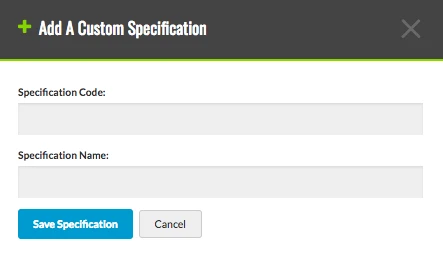
To add a specification, click Add Specification under which division you want it in.
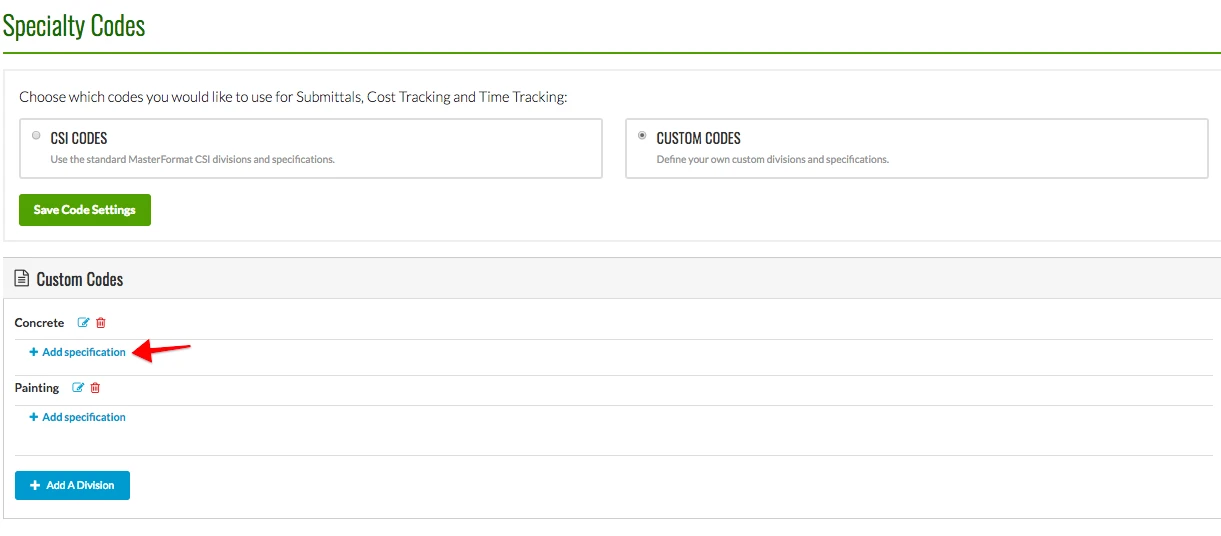
Enter the specification code and name. Click Save Specification when you are finished.
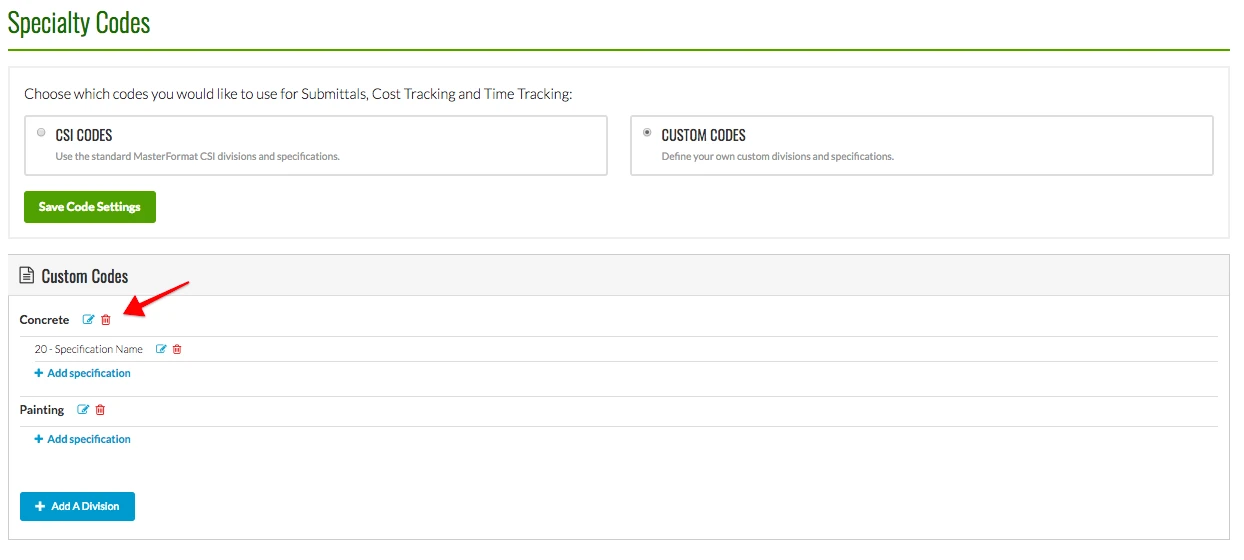
7. Deleting a Division or Specification
To delete a division or specification, click the Red Trash Can next to the division or specification. Click OK when it asks if you want to permanently delete it.
Try us out completely free for 30 days - no credit card required.
CM Fusion is cloud-based construction management software for general contractors.
 Request a Free Demo
Complete the fields below to request your Free CM Fusion Demo.
 Loading...

Hi User
How can we help?