Schedule a Demo
Free demos are available for all CM Fusion accounts!
Schedule a DemoFree demos are available for all CM Fusion accounts!
Learn how CMFusion helps manage change orders with a multi step approval process.
As you know, change orders can go through multiple steps prior to being approved and keeping the project moving forward. To make this process as simple and seamless as possible you can now customize your change order approval workflow using CMFusion.
For a guided tour of the Change Order settings, please see the video below:
Here are the steps to modify Change Order settings:
1.) From the main dashboard, select the project that you would like to work on.
2.) On the project home screen, navigate to the bottom of the left hand navigation and select Project Settings.
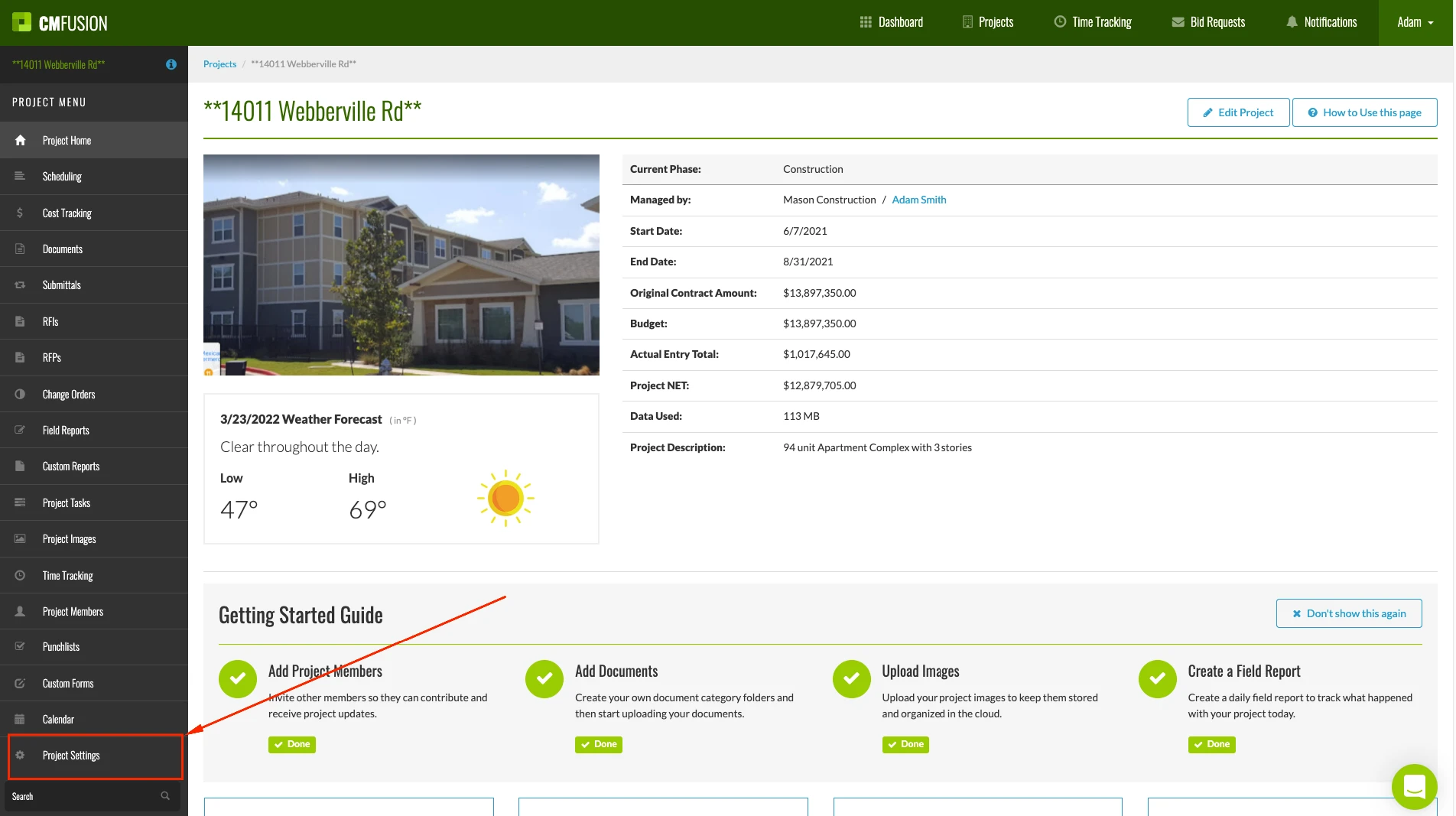
3.) Scroll down to the bottom of left and select Change Order Approvals.
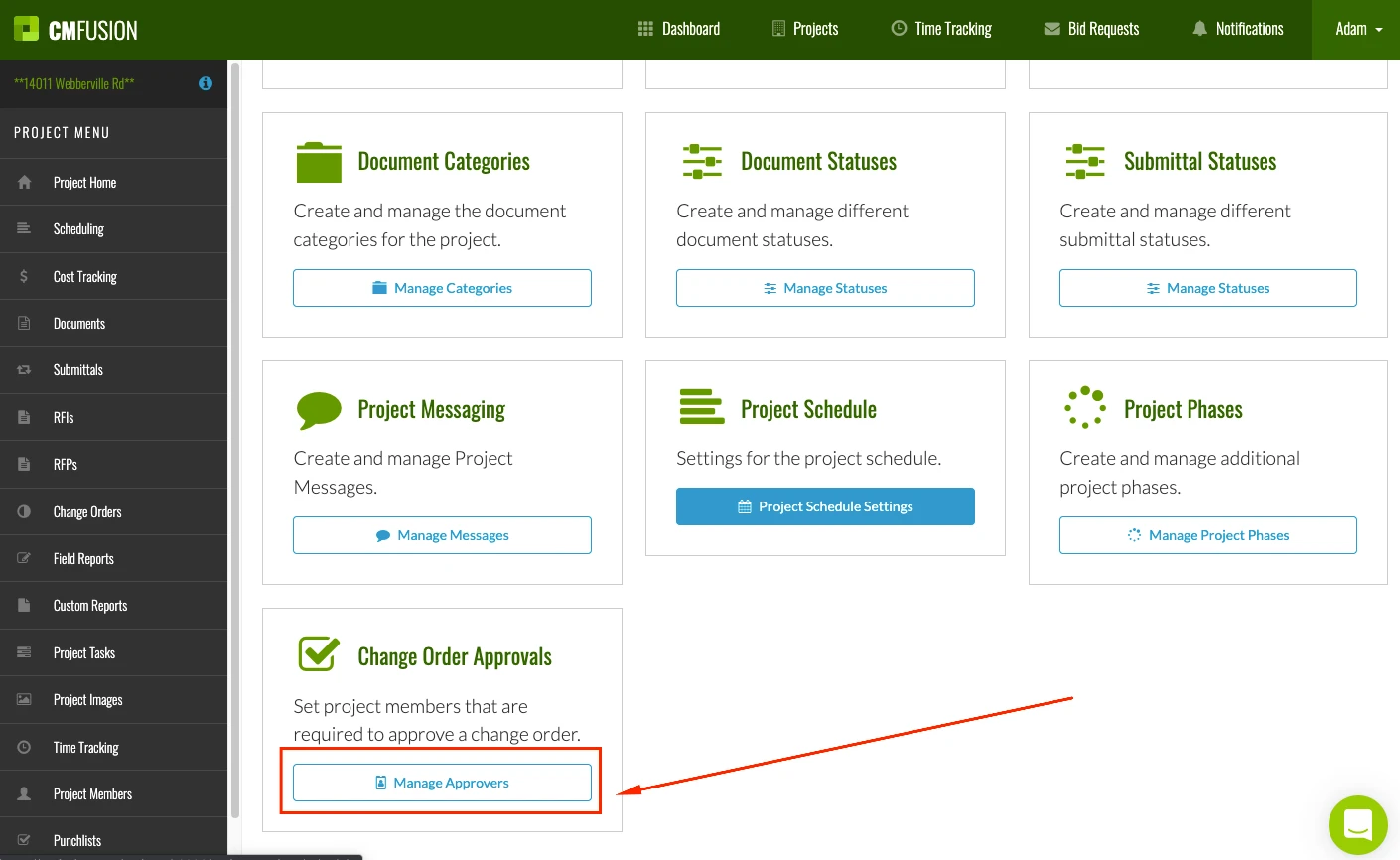
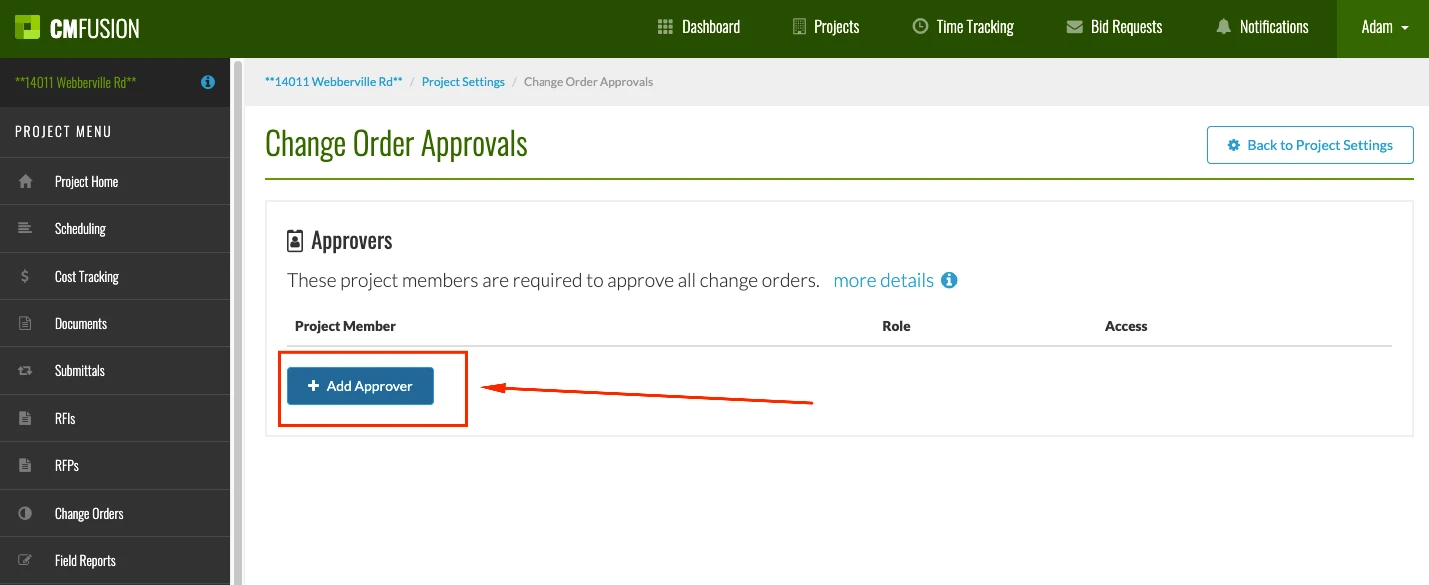
4.) From here, you can add approvers to your change orders by selecting Add Approver. Once you have done this, you can then select specific people from your account who must approve a change order.
5.) After selecting an approver, you may also select any other approvers and add them to the list. In the example below, you’ll notice that we have chosen three approvers as part of our workflow.
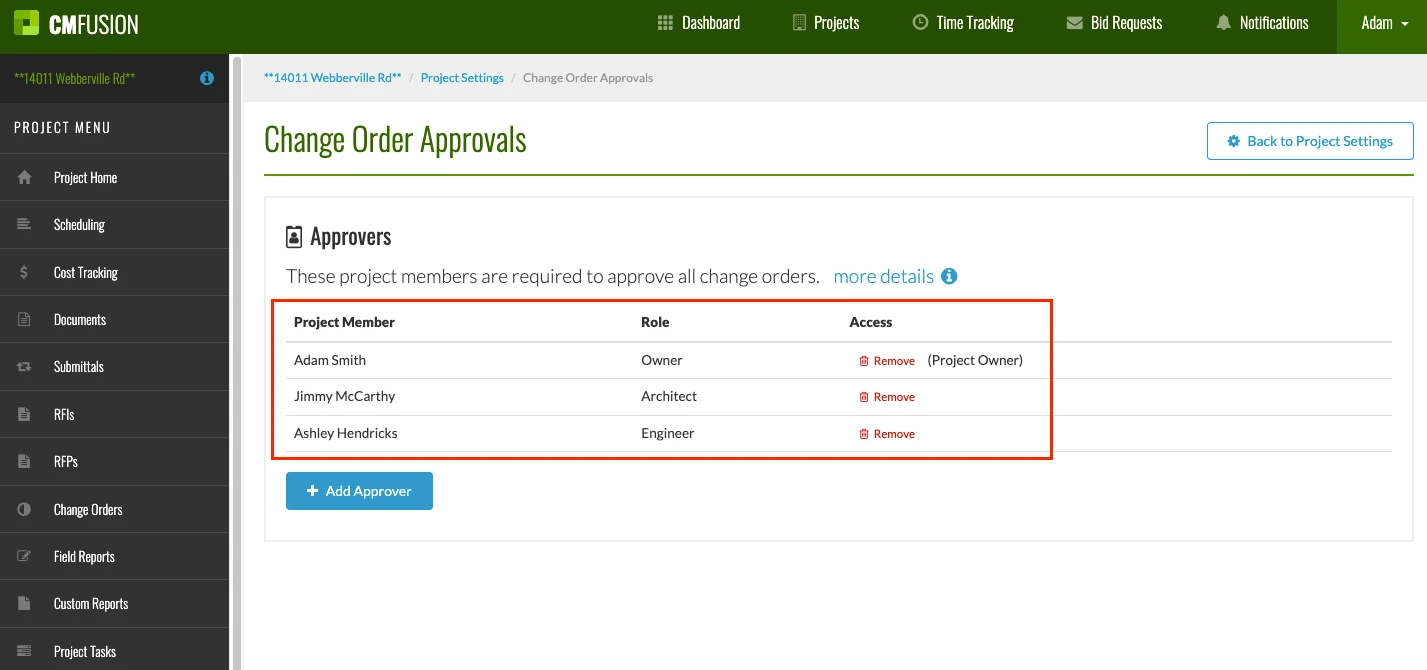
6.) When you have multiple approvers added, it is important to call out that this is how the change order approval process will work. In the example above, the first approval will be from Adam Smith, followed by Jimmy McCarthy and then finally Ashley Hendricks. The change order approval flow works in a linear sequence, with the first approver being at the top, with the final approval needed by the person on the bottom. Only when the final approver has approved the change order will this change order be considered completed.
Other Important Items to Consider with Approvals:
Try us out completely free for 30 days - no credit card required.
CM Fusion is cloud-based construction management software for general contractors.
 Request a Free Demo
Complete the fields below to request your Free CM Fusion Demo.
 Loading...

Hi User
How can we help?