Schedule a Demo
Free demos are available for all CM Fusion accounts!
Schedule a DemoFree demos are available for all CM Fusion accounts!
Let's start by going to the Projects tab in the top menu. Then select which one of your projects you want to add a task to.
1. Let's start by going to the Projects tab in the top menu.
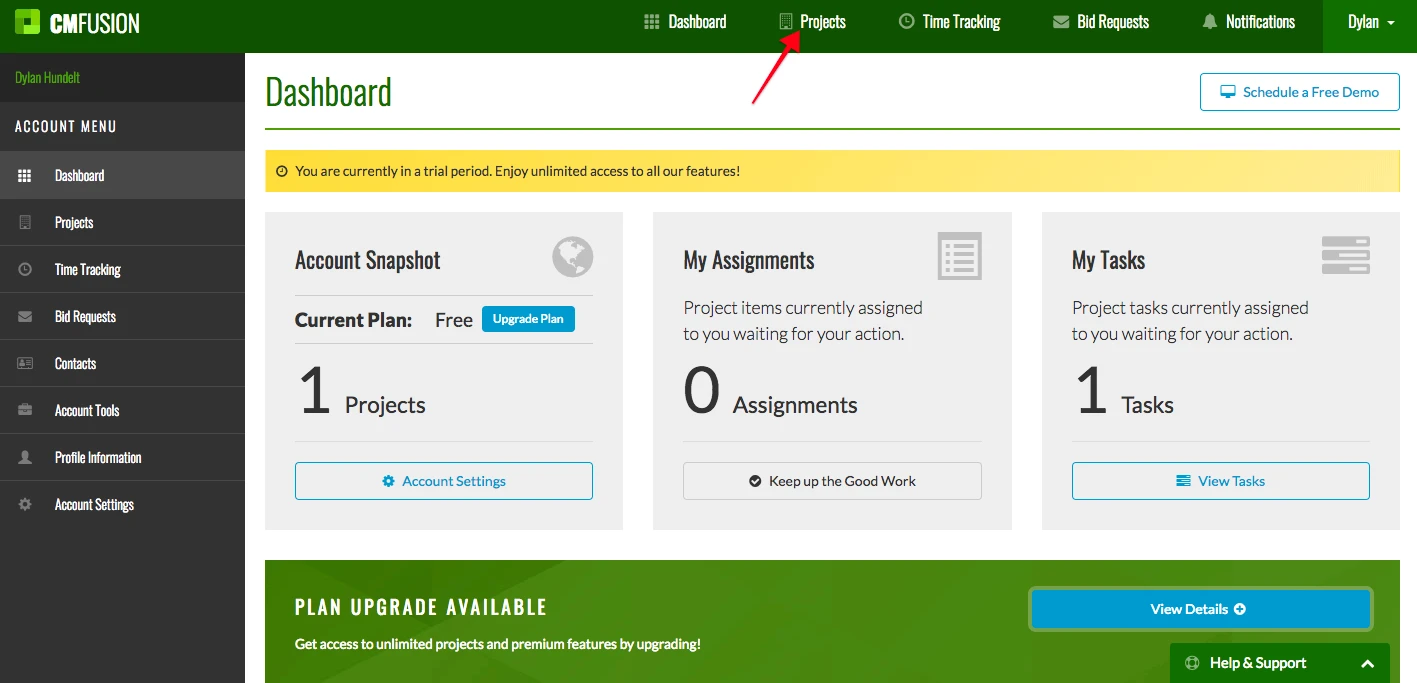
2. Then select which one of your projects you want to add a task to.
3. Next go to the Project Tasks tab on the left side menu.
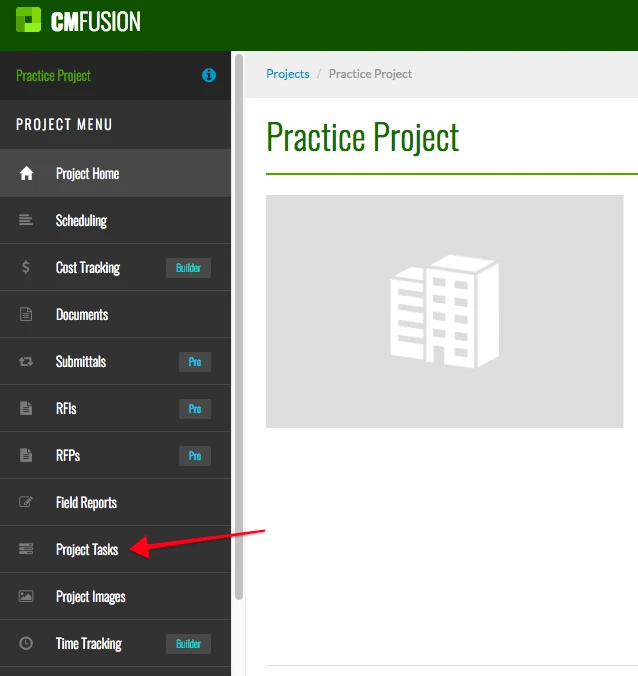
4. To create a new task, click the blue Add Task button.

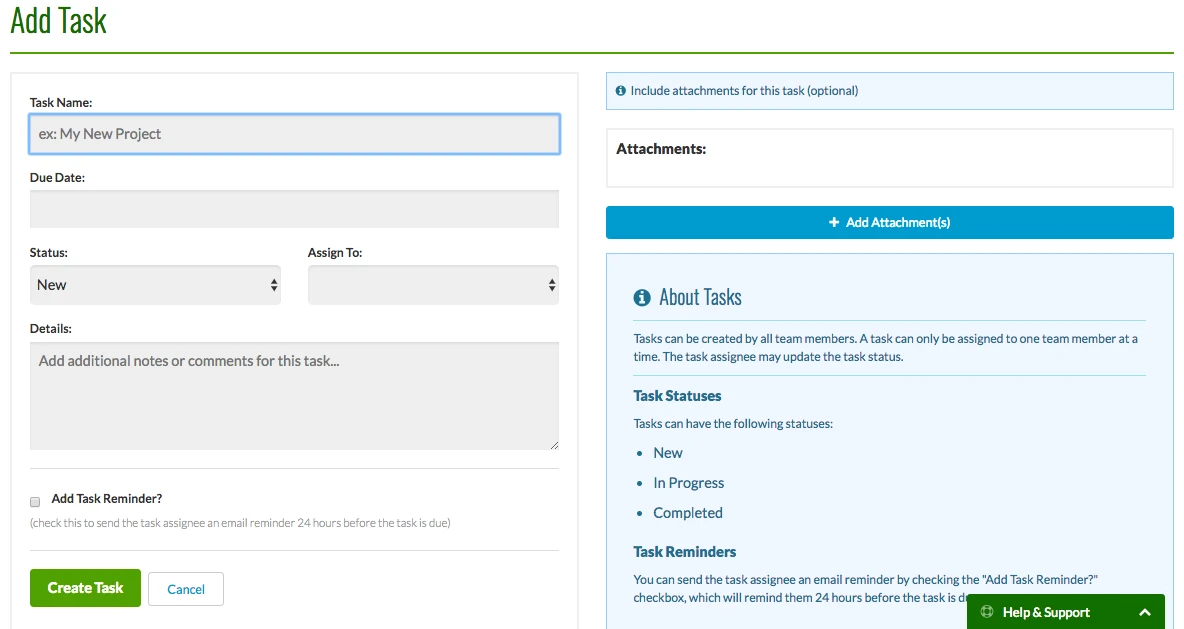
5. The following page appears. This page allows you to enter a task name, due date, status, assign the task to a project member, add details, add a reminder, and add an attachment. Clicking the due date pulls a calendar to let you select the day the task is due. Clicking the status box pulls down a list of statuses. You can either make this task New, In Progress, Completed, or Reopened. Clicking the Assign To box pulls down a list of your project members, and you can select which member you want this task assigned to. If you would like to email the assignee a reminder 24 hours before the task is due, click the box next to Add Task Reminder.
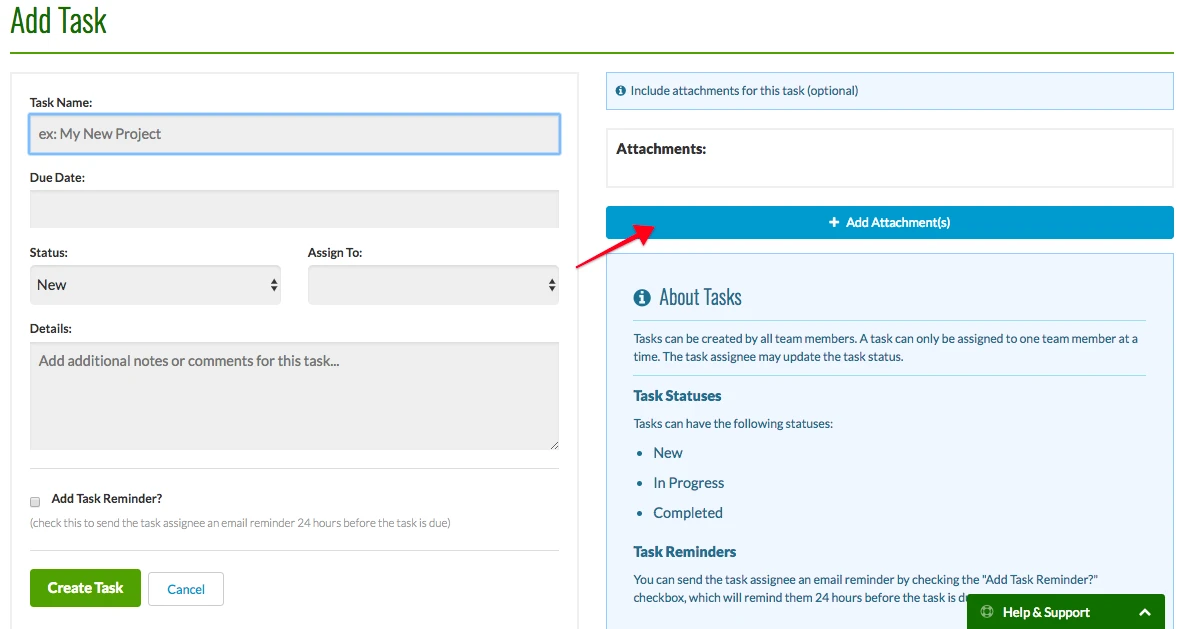
To add an attachment, click the Add Attachment button on the right, then you can select which file you wish to attach.
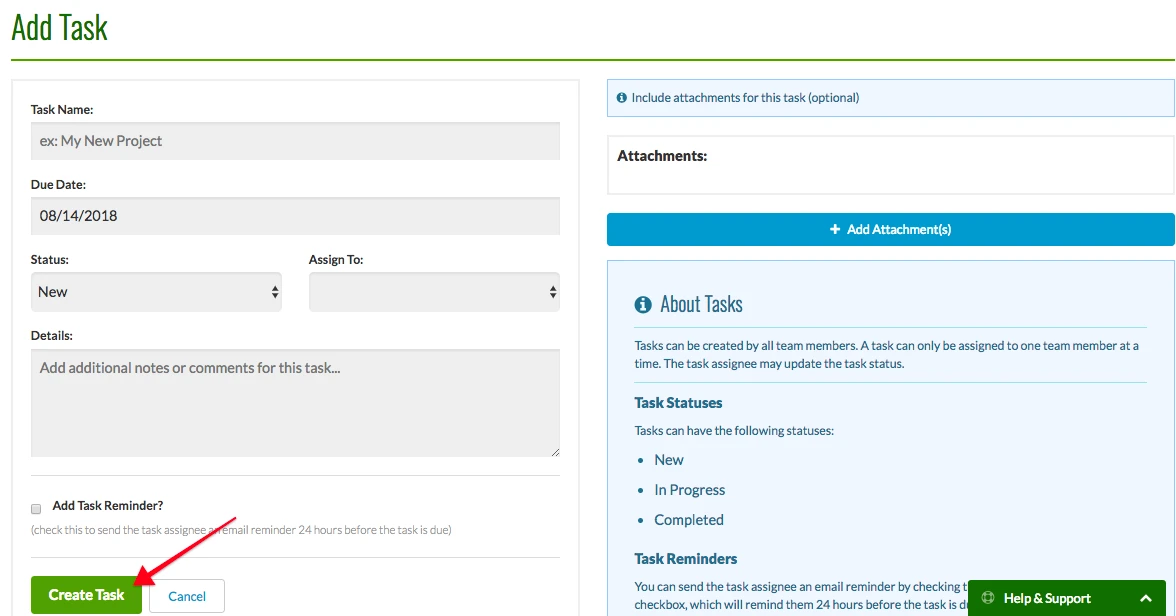
When you are finished filling in all of your task information, click the Create Task button at the bottom.
Try us out completely free for 30 days - no credit card required.
CM Fusion is cloud-based construction management software for general contractors.
 Request a Free Demo
Complete the fields below to request your Free CM Fusion Demo.
 Loading...

Hi User
How can we help?