Schedule a Demo
Free demos are available for all CM Fusion accounts!
Schedule a DemoFree demos are available for all CM Fusion accounts!
To start, select the Projects tab on the top menu. This pulls up a list of your current projects. Select the project you want to edit.
1. To start, select the Projects tab on the top menu.

2. This pulls up a list of your current projects. Select the project you want to edit.
3. In the Project Menu in left margin, click the Project Settings tab.
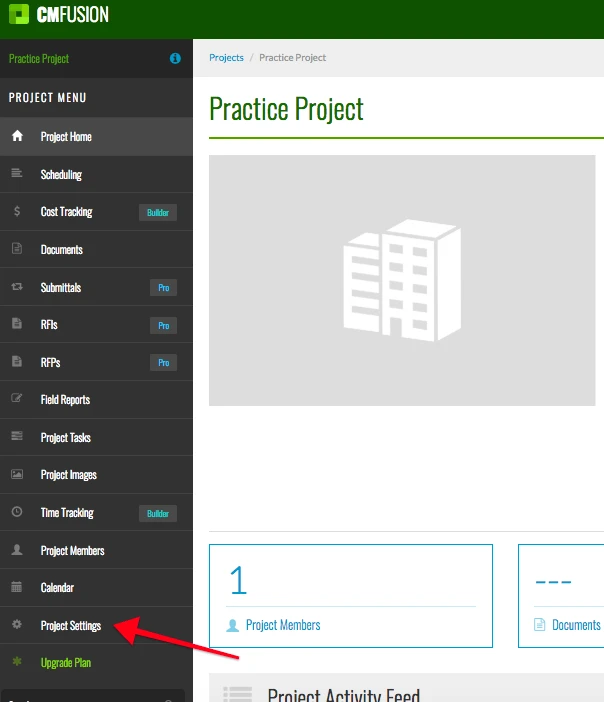
4. Next click the blue button Manage Statuses in the Document Statuses box.
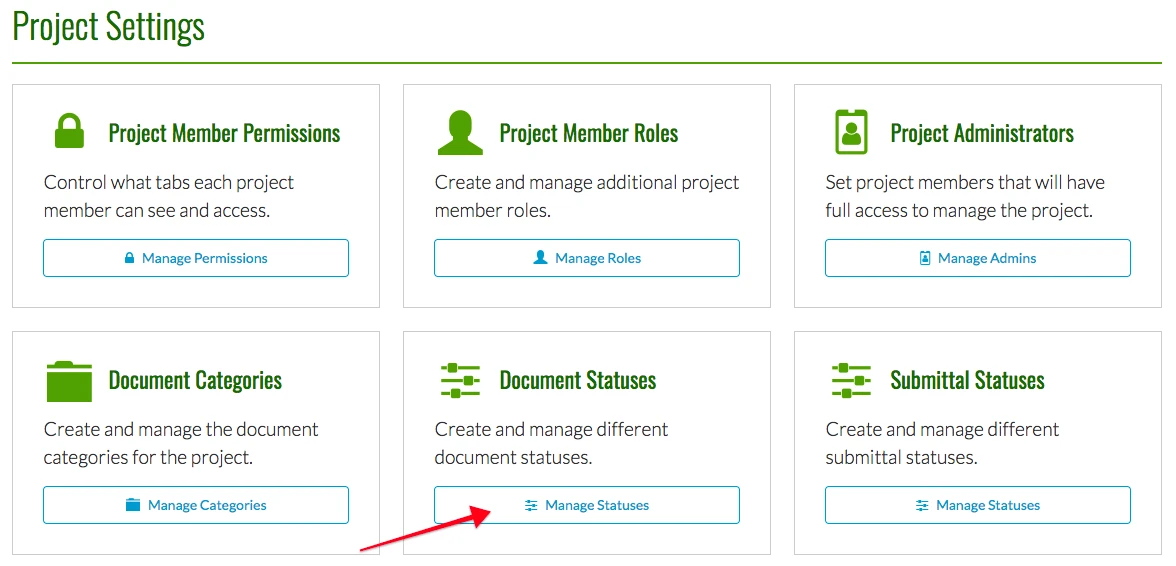
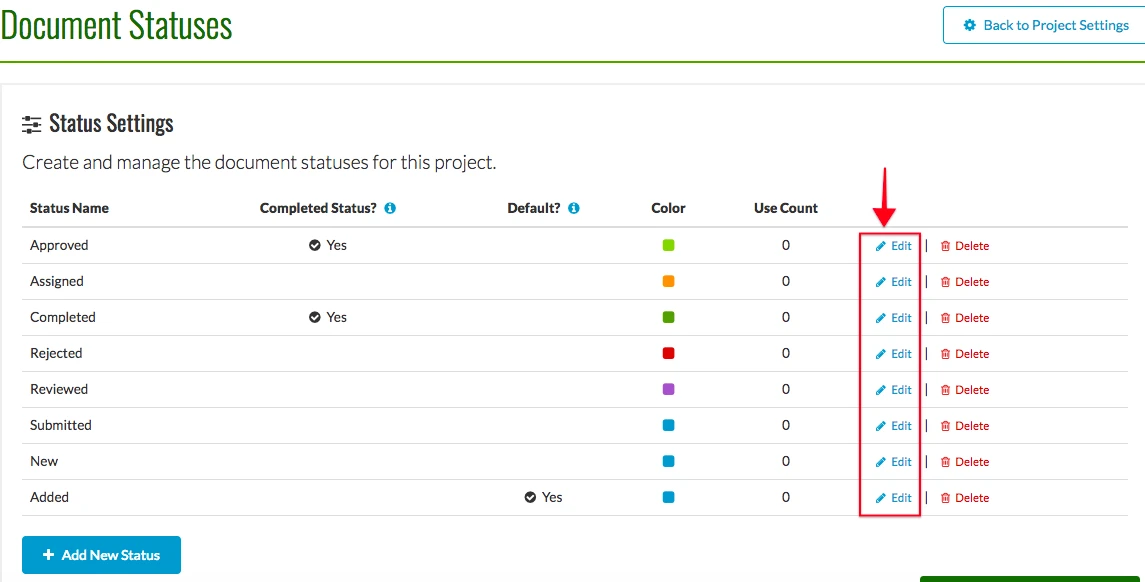
5. This page shows your current document statuses and their settings. To create a new status, click the Add New Status button in the bottom left.
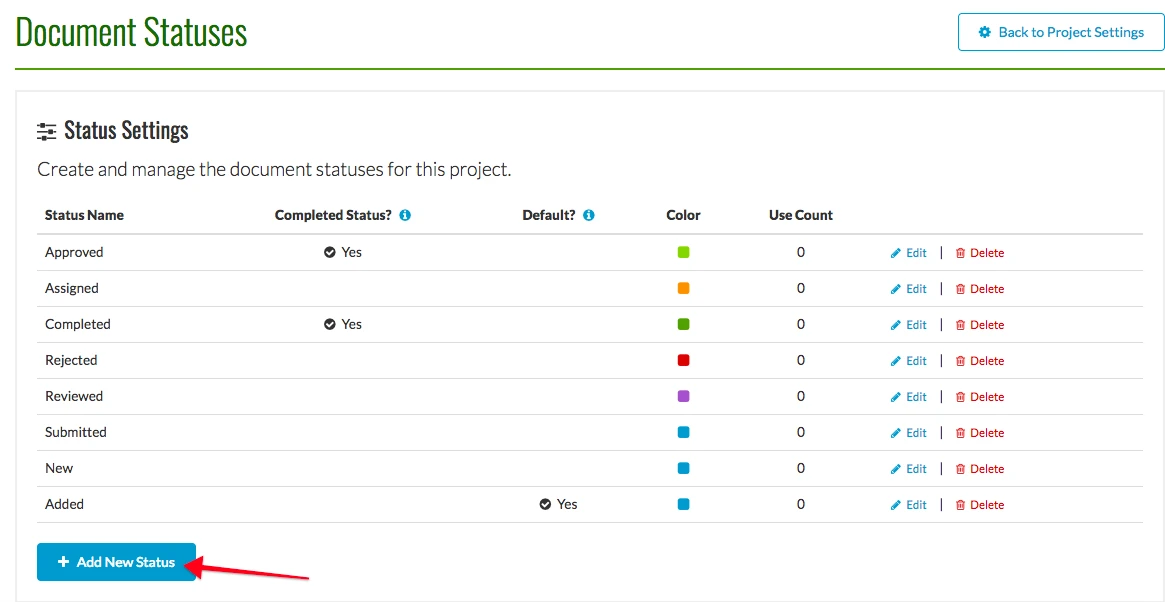
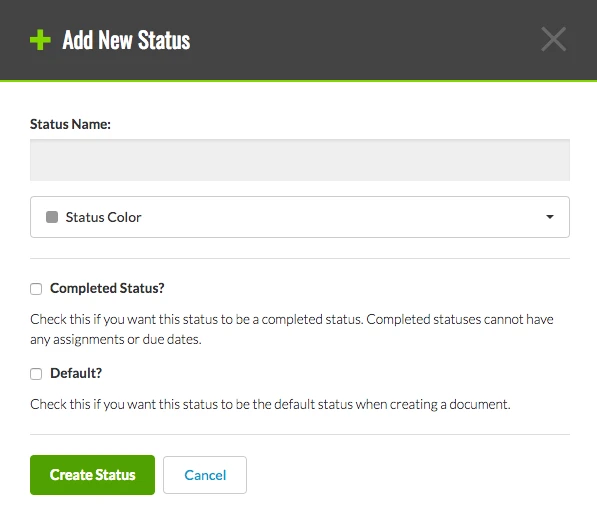
The following box pops up. Enter the name of the status in the first box. Click the arrow in the second box to get a choice of colors to attach to this status. The next two options lets you decide if you want to make it a competed status or a default status. A completed status cannot have any assignments or due dates. The default status will be the status of a new document unless you determine otherwise. Click Create Status when you are finished.
6. You can delete a status by click the red Delete button next to the status. If the status is currently assigned to a document, you will not able to delete.
7. You can also edit an existing status by clicking the blue Edit button next to that status.
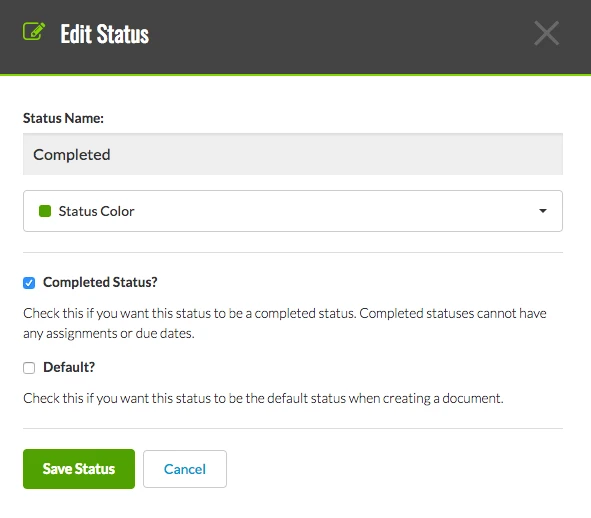
The same box from step 5 opens up and allows you change any option you had when you created the status. Click Save Status when you are done making your changes.
Try us out completely free for 30 days - no credit card required.
CM Fusion is cloud-based construction management software for general contractors.
 Request a Free Demo
Complete the fields below to request your Free CM Fusion Demo.
 Loading...

Hi User
How can we help?